Cow Ear Sensor App Guide
1. Application Introduction
- CattleHub app Positioning: Cow Ear Sensor data transfer station, ensuring "data can be uploaded". Core function: Timed uploading of Cow Ear Sensor data
- Pen Rider App Location: Digital ID cards for cattle + behavior monitoring to ensure "the data is understandable". Core functions: Attaching Cow Ear Sensor and viewing real-time data
2. First, get the base station up and running (responsible for "transmitting" data).
2.1 Download the "CattleHub APP"
You can simply click the link to download it on an Android phone.
iOS requires the use of TestFlight for installation.
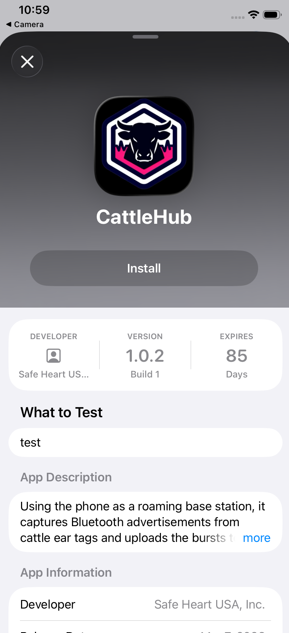
(1)On an iOS device, click the TestFlight link. If TestFlight is not installed, it will prompt you to install it.
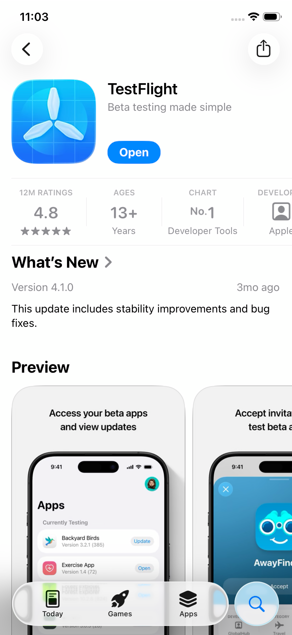
(2)After clicking the link, the following interface will appear. Just click "Install" directly.
2.2 Open after installation
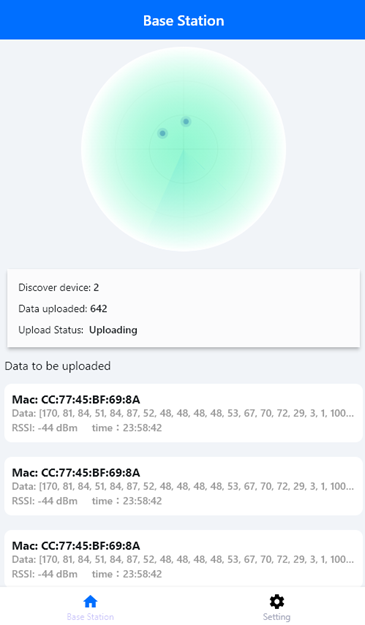
Tip: The effect is best when there is a cow ear marker device within a 5-meter radius.
3. Install an Pen Rider APP (responsible for "viewing" data)
3.1 Download the "Pen Rider APP"
You can simply click the link to download it on an Android phone.
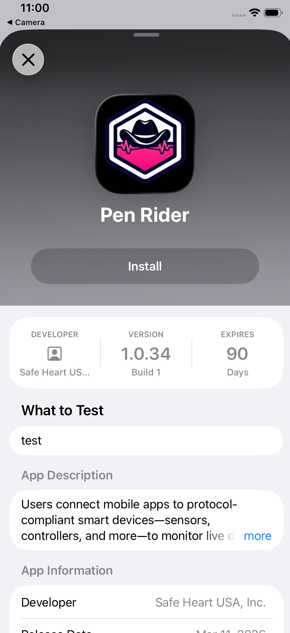
iOS requires the use of TestFlight for installation.
(1)After clicking the link, the following interface will appear. Just click "Install" directly.
3.2 Register and Login
(1) Click on "Register now" to access the registration page.
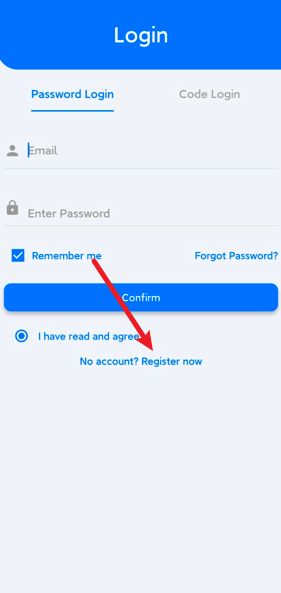
(2) Enter your account information to register.
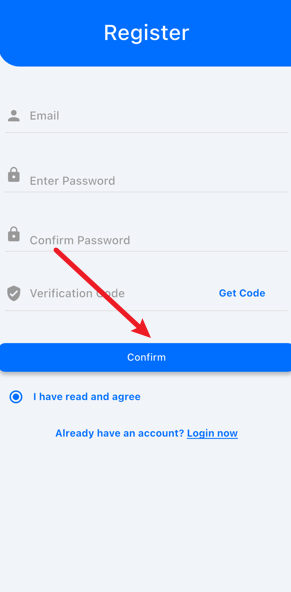
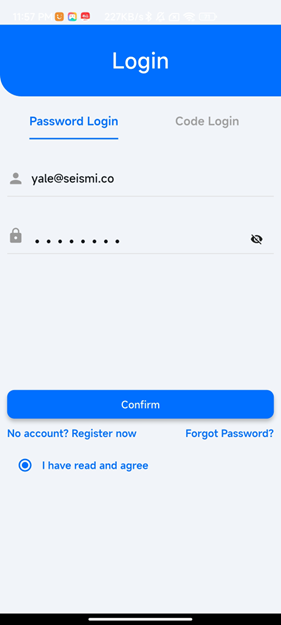
(3)If you don't want to register, you can click "Login now" to return to the login page.

(4)Log in,Just input the registration information and log in.
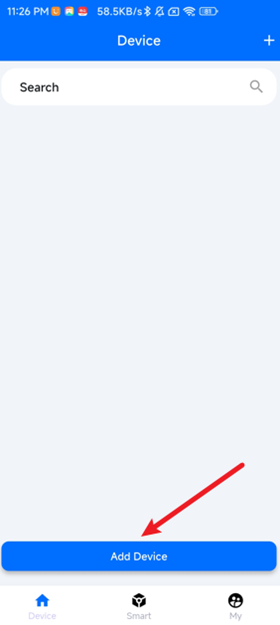
3.3 Add Cow Ear Sensor
(1) Click the "Add Device" button below.
(2) Wait 3–10 seconds for the scan results to appear → Click the target Cow Ear Sensor → “Connect”
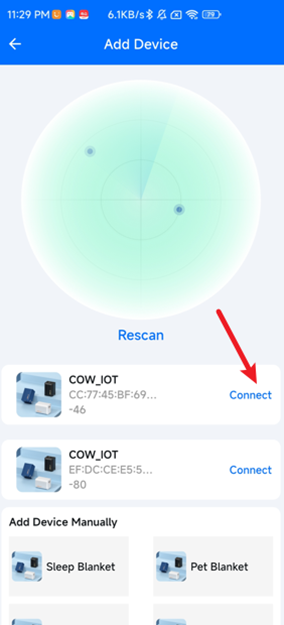
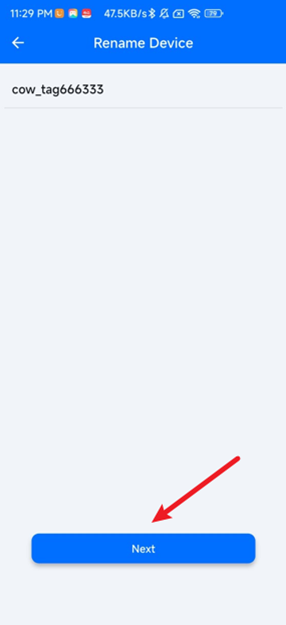
(3) Give the device a name (e.g., “COW-01”) → Save, and you can see the device in the list.
3.4 View waveforms in real time
(1) Click on the newly added device to enter the measurement page.
Note: The CattleHub app must be running in the foreground for data to be continuously uploaded.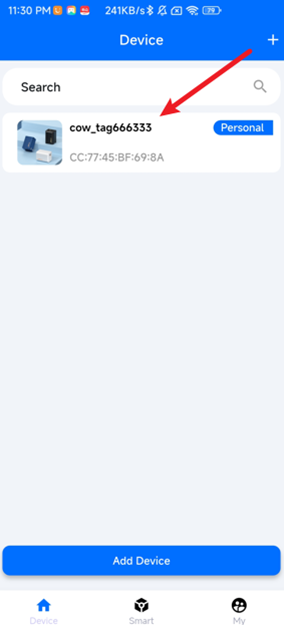
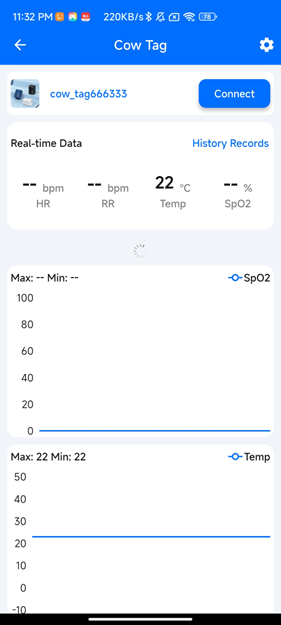
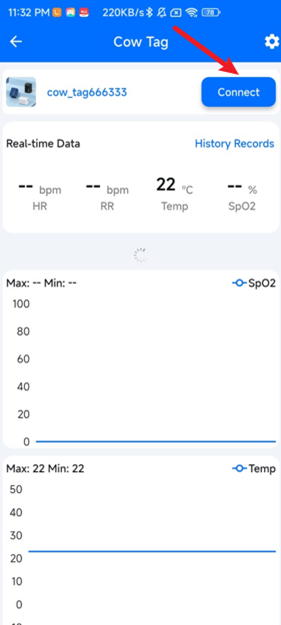
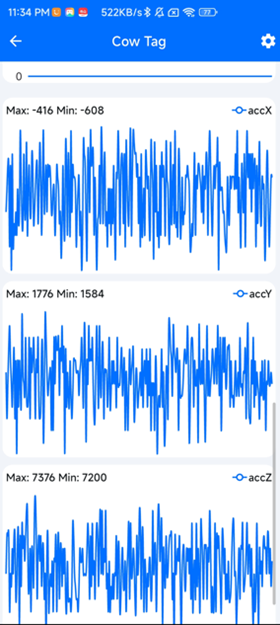
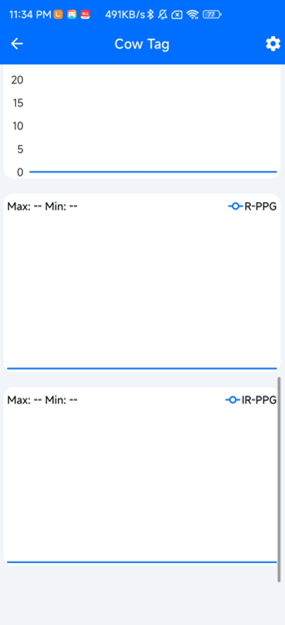
(2) Click “Connect” to view the Accelerometer and Photoplethysmograph(PPG) dual-channel waveforms in real time. (Optional)